 Veterans Knowledge Hub
Save this guide 📱
Put Veterans Knowledge Hub on your home screen
This guide runs in your web browser, so there's nothing to download from an app store and nothing to sign up for. In about 20 seconds you can add it to your phone's home screen, so it's one tap away next time you need it. It opens full screen, like an app.
Contents
Jump to your device
Each section works on its own. Pick the device in your hand.
Phone 📲
iPhone & Android phone
Keep the guide in your pocket, ready for when you're on the phone to DVA, at an appointment or waiting on a claim.
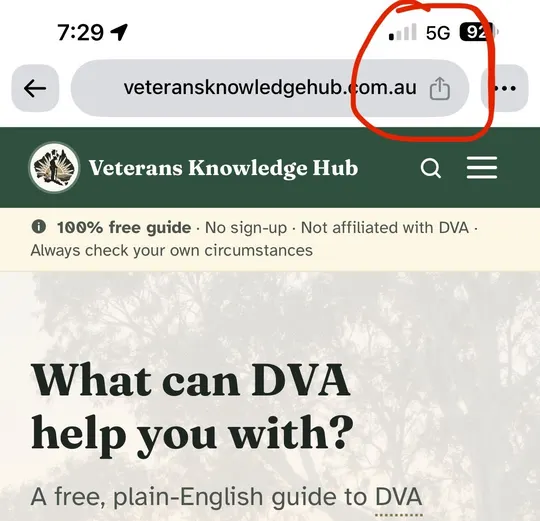
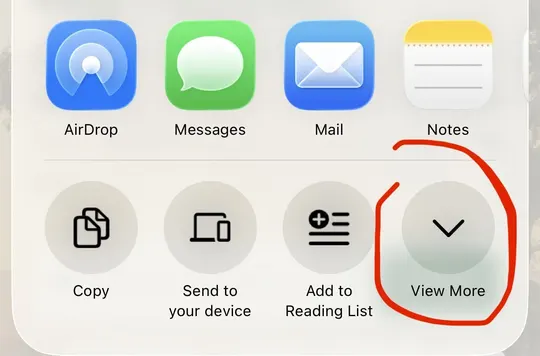
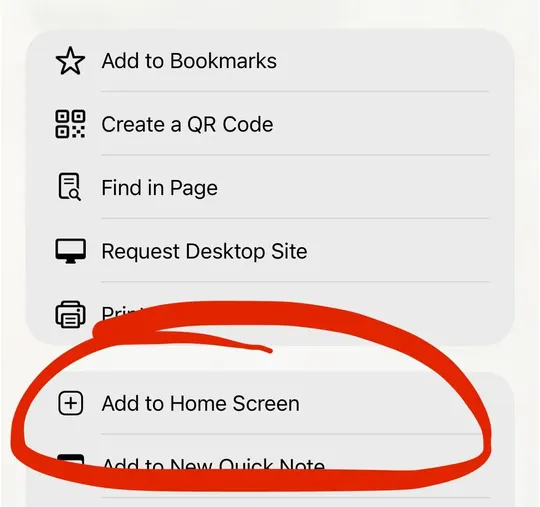
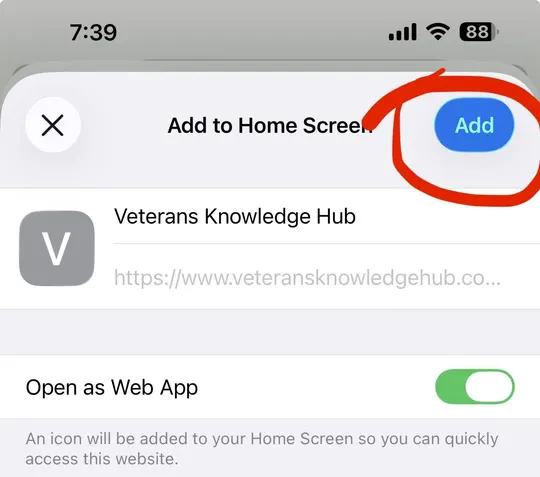
iPhone screenshots (Chrome). Safari looks very similar.
iPhone: Safari or Chrome
iPhoneWorks in Safari, Chrome and Edge on iOS 16.4 and later
- Open veteransknowledgehub.com.au.
- Tap Share, the square with an arrow pointing up. Chrome: it's at the right of the address bar. Safari: it's in the bottom toolbar. On newer iPhones, tap ••• first, then Share.
- Tap View More (or scroll down the list).
- Tap Add to Home Screen.
- Leave Open as Web App switched on, then tap Add in the top right.
- Open Veterans Knowledge Hub from your home screen.
Android phone: Chrome
AndroidSamsung Internet, Edge and Brave work too
- Open veteransknowledgehub.com.au in Chrome.
- Tap the menu ⋮ at the top right.
- Tap Add to Home screen (some phones say Install app).
- If asked, choose Install, then tap Add to confirm.
- Open it from your home screen or app drawer.
Tablet 📱
iPad & Android tablet
Handy for reading the longer guides or going through a claim with a family member.
iPad: Safari or Chrome
iPad- Open veteransknowledgehub.com.au.
- Tap Share, the square with an arrow pointing up. On iPad it's near the top right of the screen.
- Scroll down (or tap View More) and tap Add to Home Screen.
- Check the name and tap Add.
Android tablet: Chrome
Android- Open veteransknowledgehub.com.au in Chrome.
- Tap ⋮ → Add to Home screen or Install app.
- Confirm, then open it from the home screen or app drawer.
Computer 💻
Mac & Windows
On a computer it opens in its own clean window, with no tabs or address bar.
Chrome or Edge
Mac & Windows- Open veteransknowledgehub.com.au.
- Chrome: click the install icon at the right of the address bar, or go to ⋮ → Cast, save and share → Install page as app…
- Edge: click … → Apps → Install this site as an app
- Click Install. Find it in your Start menu, Launchpad or Applications.
Mac: Safari
macOS Sonoma or later- Open veteransknowledgehub.com.au in Safari.
- In the menu bar choose File → Add to Dock… (or click Share → Add to Dock).
- Click Add, then open it from the Dock.
After you add it ✅
What to expect
- 📱Its own icon. The Veterans Knowledge Hub logo sits on your home screen next to your other apps.
- ⬜Full screen. It opens without the address bar and browser tabs, so there's more room for reading.
- 🧭Getting around. There's no browser back button in app mode. Use the menu ☰, the logo (it takes you home) and the links at the top of each page.
- 🔄Always up to date. It loads the latest version of the guide every time you open it. Nothing to update.
- 📶Needs a connection. Nothing is stored on your device, so you need mobile data or Wi-Fi to use it.
- 🔒Still free, still no sign-up. Adding it doesn't create an account or share anything about you.
Removing it
How to remove it
Removing it only takes the icon away. You can always open the guide again in your browser.
Press and hold the icon, then tap Remove App or Delete Bookmark.
Press and hold the icon, then tap Uninstall or Remove.
Chrome: open chrome://apps. Edge: edge://apps. Find it and remove. Mac Safari: drag it out of the Dock.
Help 🛠
Troubleshooting
iPhone or iPad: there's no "Add to Home Screen"
Tap View More or scroll to the bottom of the share list. If it still isn't there, tap Edit Actions… and switch on Add to Home Screen. Older iPhones (before iOS 16.4) can only do this from Safari.
It opens as a normal browser tab
On iPhone, Open as Web App was probably switched off. Remove the icon and add it again with that switch on.
The icon is a grey letter, not the logo
Your phone saved an older icon. Remove it and add it again.
Android: no "Add to Home screen" in the menu
Make sure you're in Chrome (or Samsung Internet), not an in-app browser such as Facebook's. If you opened the link from Facebook or Messenger, tap the menu (••• or ⋮) and choose Open in external browser (or Open in Chrome) first, then follow the steps above.
Something else
Tell us what phone and browser you're using on the feedback page and we'll update these steps.
Cheat sheet
Quick reference
One line per device. Screenshot this and send it to a mate.
| Device | Browser | How to add it |
|---|---|---|
| iPhone | Safari / Chrome | Share → View More → Add to Home Screen → Add |
| Android phone | Chrome | ⋮ → Add to Home screen / Install app |
| iPad | Safari / Chrome | Share → Add to Home Screen → Add |
| Android tablet | Chrome | ⋮ → Add to Home screen / Install app |
| Mac / Windows | Chrome / Edge | Install icon in the address bar, or menu → Install |
| Mac | Safari | File → Add to Dock |